

How much of your workday goes into answering emails, preparing documents, updating spreadsheets, or sitting through meetings? For employees at small and mid-sized businesses in Canada, these routine tasks can consume hours every week. Microsoft 365 Copilot can help speed up this work by bringing AI assistance directly into the Microsoft 365 applications your team already uses.
From writing better emails in Outlook to analyzing sales data in Excel, Copilot offers practical ways to work more efficiently. Here are 10 ways businesses can use Microsoft Copilot Canada to improve everyday productivity in Microsoft 365, along with examples you can try yourself.
1. Summarize Long Email Conversations in Outlook
Long email threads can be frustrating, especially when several people are discussing the same project. Finding an important decision often means scrolling through dozens of replies.
Microsoft 365 Copilot in Outlook can summarize supported email conversations, highlighting important information and helping employees catch up quickly.
For example, a project manager returning from vacation could use Copilot to review a lengthy conversation about a client’s requirements and identify the latest decisions.
Example prompt: “Summarize this email conversation and highlight the key decisions, pending questions, and deadlines.”
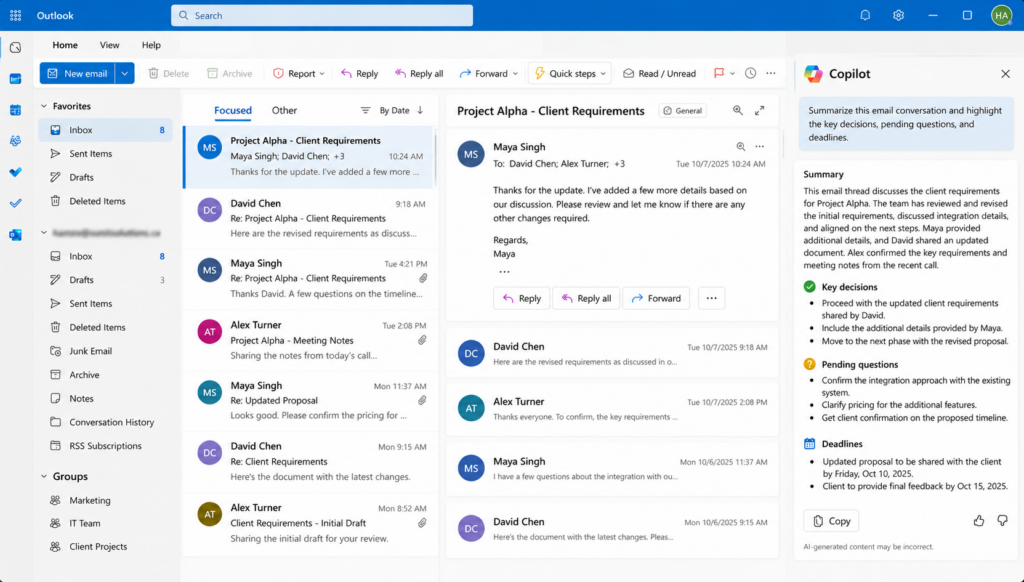
This is particularly useful for busy managers and customer service teams that handle large volumes of communication.
2. Draft and Improve Professional Emails
Writing professional emails takes time, particularly when employees need to communicate sensitive information or explain complicated issues.
With Copilot in Outlook, you can generate email drafts from short instructions. You can also use its coaching features to improve clarity, tone, and overall readability.
Imagine a customer has complained about a delayed delivery. Your support representative could ask Copilot to prepare a polite response acknowledging the issue and explaining the next steps.
Example prompt: “Draft a professional reply apologizing for the delivery delay and confirming that we’ll provide an update tomorrow.”
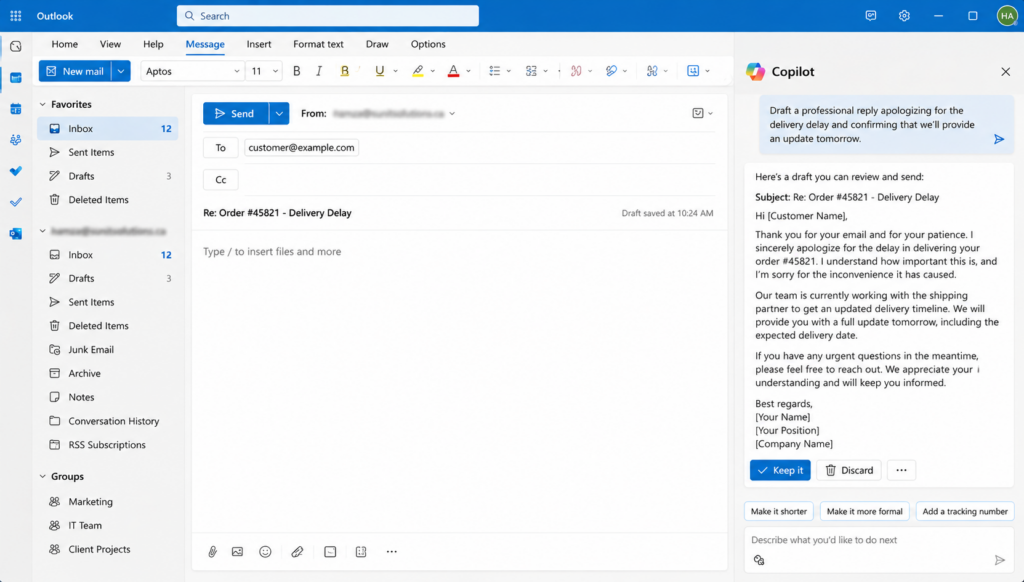
Employees should review the message and confirm the facts before sending it.
For additional productivity ideas, explore our guide to Microsoft Teams and Outlook tips and tricks.
3. Create Business Documents Faster in Word
Preparing proposals, project plans, and internal reports can take considerable time, particularly when starting with a blank page.
Microsoft Copilot in Word can generate initial drafts from your instructions or supported reference documents. This gives employees a starting point they can develop further.
For example, a Toronto-based IT consulting company could use Microsoft Copilot Toronto to prepare a first draft of a service proposal based on its project requirements.
Example prompt: “Create a project proposal for a small business moving to Microsoft 365. Include the project scope, major deliverables, and an implementation timeline.”
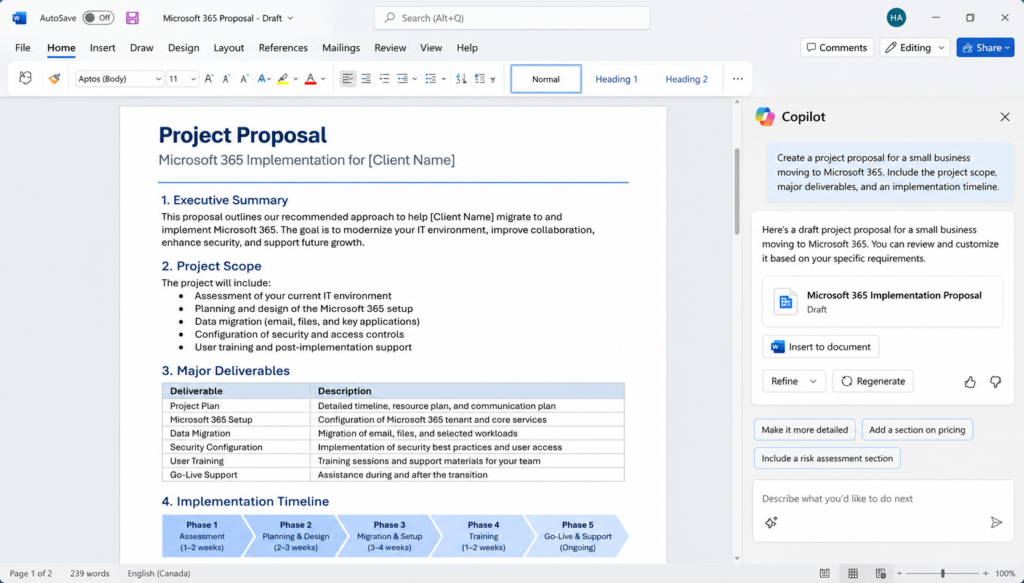
Employees can then add company-specific information, confirm technical details, and adjust the document before sharing it.
4. Summarize and Rewrite Existing Documents
Businesses often deal with lengthy reports, policies, contracts, and other documents that require careful reading.
Microsoft Copilot in Word can summarize document content, answer questions about it, and help rewrite selected sections for clarity.
Consider an HR manager reviewing a lengthy employee handbook. They could ask Copilot to summarize the vacation policy or simplify complicated wording before preparing an employee-facing version.
Example prompt: “Summarize the main points of this policy and identify the sections employees need to understand.”
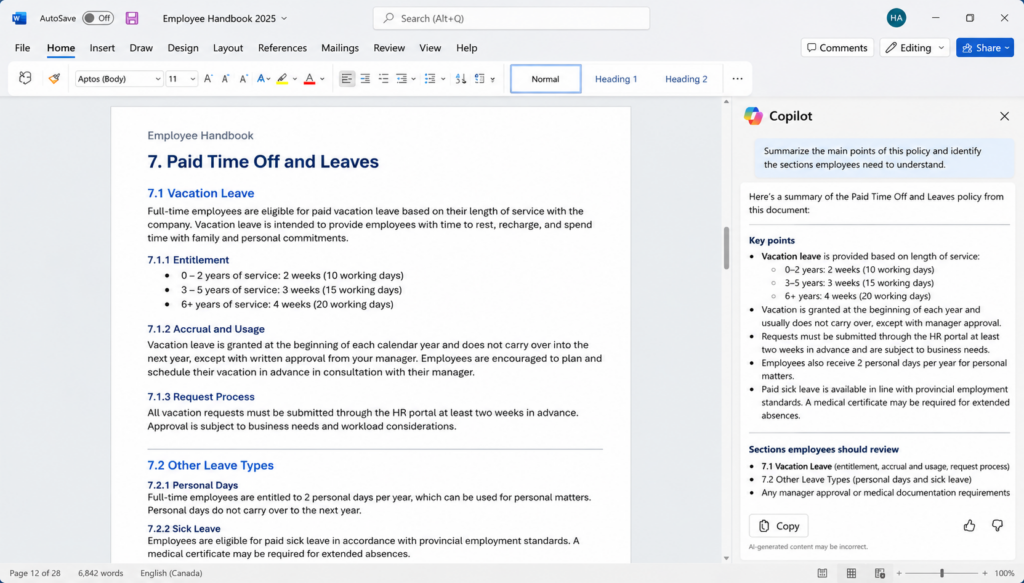
For legal documents or compliance policies, a qualified employee should verify the summary against the original text.
5. Analyze Sales and Financial Data in Excel
Small businesses often maintain detailed spreadsheets covering sales, inventory, expenses, and employee performance. Extracting useful information from these records can be time-consuming.
Microsoft Copilot in Excel allows users to ask questions about their data using everyday language. It can identify trends, highlight unusual values, and generate summaries or visualizations.
For example, a retail business could analyze six months of sales data to understand which products performed well and which categories experienced declining revenue.
Example prompt: “Analyze this sales data and identify the three product categories with the highest revenue growth over the last six months.”
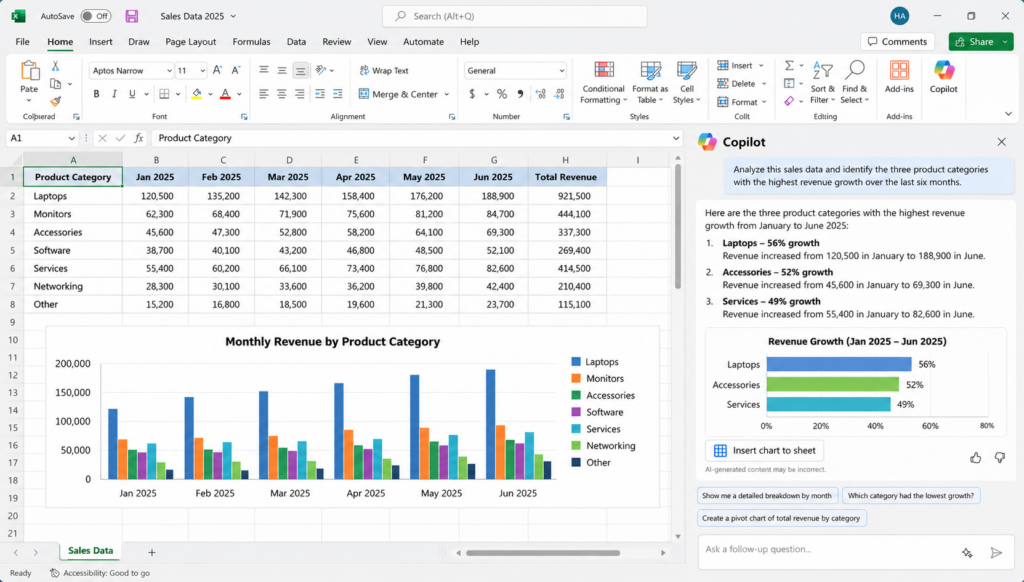
Managers can use these findings to guide further analysis and business decisions.
6. Generate Excel Formulas and Charts
Not every employee feels comfortable working with advanced Excel formulas. Creating calculations and visual reports can become particularly challenging when spreadsheets contain hundreds of rows.
Microsoft 365 Copilot can suggest formulas, explain existing calculations, and help create charts and PivotTables.
For example, an operations manager tracking inventory could ask Copilot to calculate profit margins or create a chart comparing monthly purchasing costs.
Example prompt: “Add a column that calculates the profit margin percentage for each product and create a chart comparing monthly sales.”
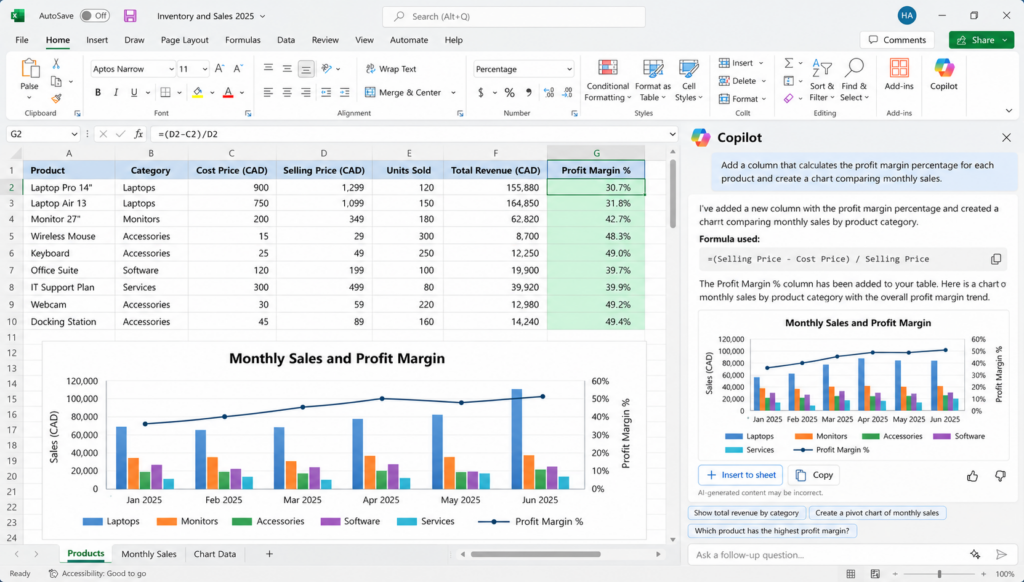
This can make routine spreadsheet work easier for employees who have limited experience with Excel’s advanced features. However, calculations should still be checked before being used in financial reporting.
7. Create Business Presentations in PowerPoint
Preparing a client presentation often involves gathering information, organizing slides, and writing concise explanations.
Microsoft Copilot in PowerPoint can generate an initial presentation from a prompt or supported reference file, giving employees a structure they can edit and customize.
For example, a sales manager could use an existing quarterly performance report to prepare a presentation for senior management.
Example prompt: “Create a presentation based on this quarterly sales report, covering key achievements, challenges, and priorities for next quarter.”
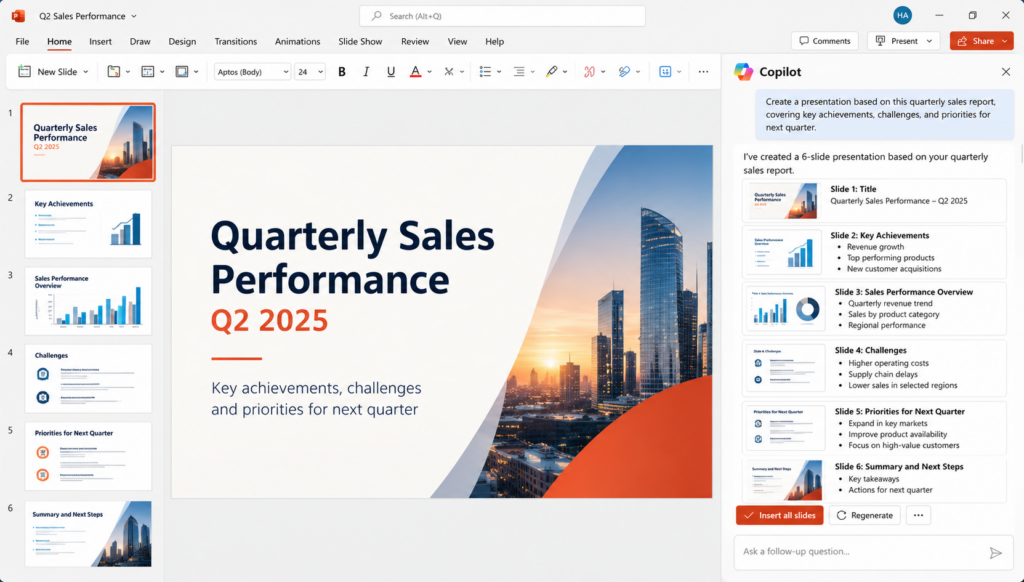
Copilot can help organize the material into slides, while employees can refine the design, check the figures, and add relevant examples.
8. Summarize Presentations and Improve Slide Content
Reviewing a lengthy presentation before a meeting can take time, especially when it contains detailed information across many slides.
Microsoft Copilot in PowerPoint can summarize presentations, answer questions about their content, and help improve existing slides.
Suppose a business owner receives a 40-slide presentation from a supplier. They could ask Copilot to identify the most important findings before discussing the proposal with their team.
Example prompt: “Summarize the five most important points in this presentation and identify any recommendations that need management approval.”
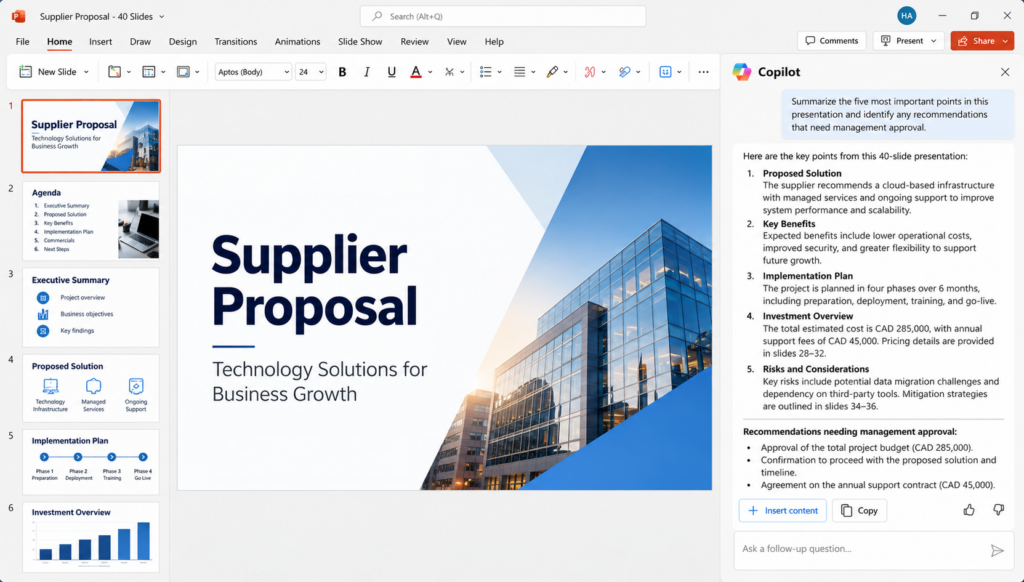
This also helps employees prepare for meetings when they have limited time to review the full presentation.
9. Capture Meeting Summaries and Action Items in Teams
Meetings are essential for collaboration, but keeping track of decisions and follow-up responsibilities can be difficult.
Microsoft Copilot in Microsoft Teams can summarize supported meetings, answer questions about discussions, and identify action items. Meeting settings, transcription, and licensing affect which features are available.
For example, after a weekly project meeting, a manager could ask Copilot to prepare a summary of outstanding tasks and assigned responsibilities.
Example prompt: “Summarize the key decisions from this meeting and list the action items with their assigned owners.”
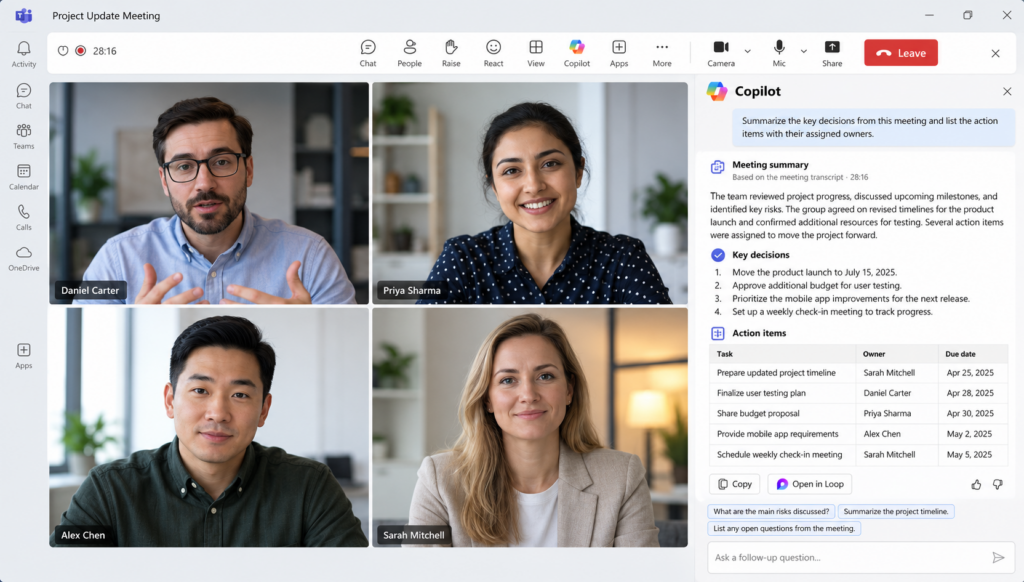
Employees can review the summary and confirm responsibilities before sharing it with the team.
10. Catch Up on Missed Meetings and Teams Conversations
When employees are busy handling customer requests or working on deadlines, they cannot attend every meeting or follow every Teams conversation.
Microsoft 365 Copilot can help users catch up on supported meetings and chats by summarizing relevant discussions and answering specific questions.
For example, an employee returning after two days of leave could review a project’s recent Teams discussion without reading every message individually.
Example prompt: “What important decisions were made in this project chat this week, and what tasks are still outstanding?”
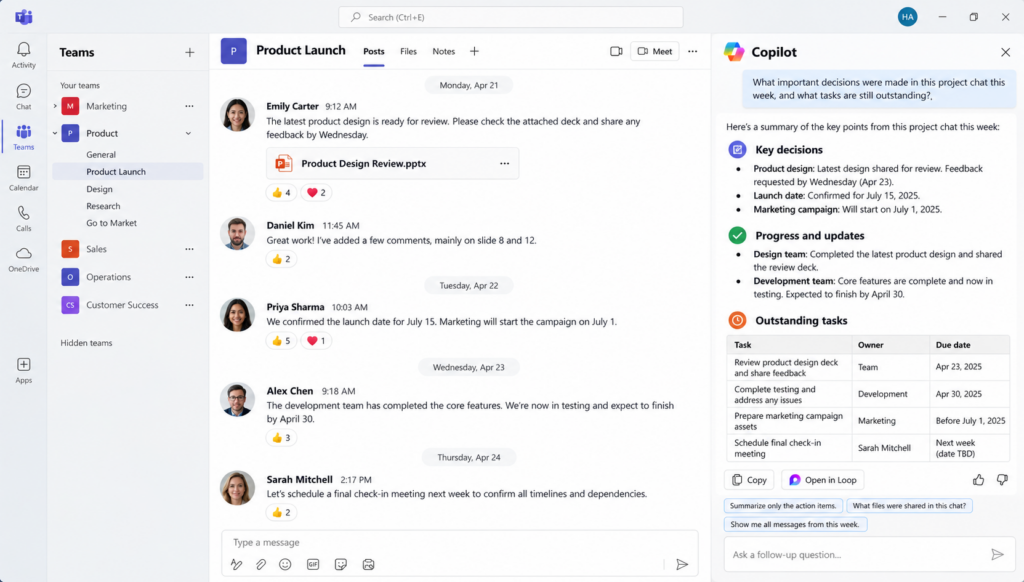
This can be especially helpful for businesses with hybrid teams, where employees work across different schedules and locations.
How to Get More Value From Microsoft Copilot
These examples show how Microsoft Copilot for business can improve productivity, but the results depend on how employees use it.
Start by identifying tasks that consume the most time. For some teams, that may be managing emails. Others may benefit more from spreadsheet analysis or meeting summaries.
Employees should also learn to write clear prompts and verify AI-generated information. Microsoft Copilot can occasionally produce inaccurate content, so human review remains important.
Businesses exploring Microsoft Copilot Canada should check their licensing and existing Microsoft 365 setup before adopting these features. For more guidance, read our article on Microsoft Copilot for Business and implementation.
Improve Microsoft 365 Productivity With Sun IT Solutions
Getting the most from AI Solutions for Business requires a reliable Microsoft 365 environment, appropriate access controls, and employees who understand how to use the tools.
Sun IT Solutions helps Toronto businesses manage Microsoft 365, strengthen cybersecurity, and keep their IT systems running efficiently. Through our Microsoft 365 Consulting and ongoing technical support, we can help your organization assess its environment and prepare for Copilot adoption.
Businesses looking for Microsoft 365 Support Toronto or Managed IT Services Toronto can also benefit from our ongoing IT management and troubleshooting services.
If you’re considering Microsoft Copilot Toronto implementation for your team, contact Sun IT Solutions to discuss your Microsoft 365 environment and find out how we can help your business work more efficiently.
